Nvidia CEO Jen-Hsun Huang told analysts few days ago just how important cloud graphics will be to the world. The company announced that its recently announced Kepler-based graphics chips are capable of cloud graphics. That means they can process graphics for multiple users in a data center and then dispatch the appropriate graphics as needed to the displays of distant remote users.
That allows big new applications for cloud computing in the enterprise. You can, for instance, use your own puny laptop to access huge visual projects such as engineering designs. Your computer will tap the graphics computing power in the cloud to render the images that your laptop could never display in real-time. One graphics processing unit (GPU) in the cloud can supply the graphics for at least four remote users today, compared to just one for prior chips. That makes cloud gaming and enterprise cloud graphics applications far more economical than in the past.
See more in http://venturebeat.com.
GPU cloud will challenge video compression technology of today. HEVC intra transform skipping addresses graphic contents, but HEVC or H.265 may requires lots of resources to keep up with real time encoding. Vector based encoding techniques may involve to have better contributions.
Tuesday, May 29, 2012

HEVC / H.265 Analysis Tool - CodecVisa
CodecVisa is an analyzer for H.265/H.264/AVC/MVC, VP8, MPEG2 Video and YUV video codecs. Currently it supports HM6.3. Test it online @ http://hevcvisa.codecian.com/.
Saturday, May 26, 2012
Compiling Live555 with Microsoft Visual Studio
Live555 are source-code libraries for standards-based RTP/RTCP/RTSP/SIP multimedia streaming, suitable for embedded and/or low-cost streaming applications. It can be easily built with Visual Studio 6 (VC6). The following instructions are for a command line build using VC6.
1. Modify the line "TOOLS32 = ..." in win32config to point to the VC6 installed directory in your host machine. For example, "TOOLS32 = C:\Program Files (x86)\Microsoft Visual Studio\VC98".
2. Comment out "del /Q liveMedia.mak", etc., since they do not exist yet.
3. Run genWindowsMakefiles.cmd to generate *.mak.
4. Save the following commands into a bat file in the src directory.
call "C:\Program Files (x86)\Microsoft Visual Studio\VC98\Bin\VCVARS32.bat"
cd liveMedia
nmake /B -f liveMedia.mak
cd ../groupsock
nmake /B -f groupsock.mak
cd ../UsageEnvironment
nmake /B -f UsageEnvironment.mak
cd ../BasicUsageEnvironment
nmake /B -f BasicUsageEnvironment.mak
cd ../testProgs
nmake /B -f testProgs.mak
cd ../mediaServer
nmake /B -f mediaServer.mak
5. Run the saved bat file.
6. Play .exe in \testProgs
If you like to use VS2005 or VS2008, the following links are helpful:
1. Modify the line "TOOLS32 = ..." in win32config to point to the VC6 installed directory in your host machine. For example, "TOOLS32 = C:\Program Files (x86)\Microsoft Visual Studio\VC98".
2. Comment out "del /Q liveMedia.mak", etc., since they do not exist yet.
3. Run genWindowsMakefiles.cmd to generate *.mak.
4. Save the following commands into a bat file in the src directory.
call "C:\Program Files (x86)\Microsoft Visual Studio\VC98\Bin\VCVARS32.bat"
cd liveMedia
nmake /B -f liveMedia.mak
cd ../groupsock
nmake /B -f groupsock.mak
cd ../UsageEnvironment
nmake /B -f UsageEnvironment.mak
cd ../BasicUsageEnvironment
nmake /B -f BasicUsageEnvironment.mak
cd ../testProgs
nmake /B -f testProgs.mak
cd ../mediaServer
nmake /B -f mediaServer.mak
5. Run the saved bat file.
6. Play .exe in \testProgs
If you like to use VS2005 or VS2008, the following links are helpful:
Friday, May 25, 2012
HEVC / H.265 Text Specification Draft 7 (HEVC DIS) and HM-7.0rc2
The Joint Collaborative Team on Video Coding (JCT-VC) are now developing the next generation of MPEG coding, which, when completed, will be known as H.265, HEVC, "The Next Step for MPEG". This work began in early 2010, and is expected to result in the publication of a finished standard in 2013, 10 years after the publication of MPEG-4. A principal objective of H.265 is to improve coding efficiency, reducing bit rate requirements to half that required for comparable pictures in MPEG-4, at the expense of increased computational complexity. It is aimed at advanced displays and television systems that use progressive scanning and resolutions from 320x240 pixels up to UHDTV with 8K resolution (7680x4320 pixels), so it is aimed at covering the gamut from handheld mobile screens to theater-grade 8K displays, and the systems to produce and transport images for them, plus improved noise performance, dynamic range, and color fidelity.
JCT-VC of ITU-T WP3/16 and ISO/IEC JTC 1/ SC 29/ WG 11 held its ninth meeting during 27 April – 7 May 2012 at the ITU-T premises in Geneva, CH. The primary goals of the meeting were to review the work that was performed in the interim period since the eighth JCT-VC meeting in producing the 6th HEVC Test Model (HM6) software and text and editing the 6th HEVC specification Draft (which was issued as an ISO/IEC Committee Draft – CD), review the results from interim Core Experiments (CEs), review technical input documents, establish the 7th draft of the HEVC specification (to be issued as an ISO/IEC Draft International Standard – DIS) and the seventh version of the HEVC Test Model (HM7), and plan a new set of Core Experiments (CEs) for further investigation of proposed technology.
The JCT-VC produced three particularly important output documents from the meeting: the HEVC Test Model 7 (HM7), the HEVC specification draft 7 a.k.a. Draft International Standard (DIS), and a document specifying common conditions and software reference configurations for HEVC coding experiments.
The meeting documents can be downloaded at http://phenix.int-evry.fr.
The latest HEVC or H.265 text specification draft 7 can be downloaded from the link. The Draft 7 of High efficiency video coding addressed:
• RQT related issues (#459)
• Log2MaxTrafoSize constraint (#348)
• log2TrafoWidth1 and log2TrafoHeight1 calculation for NSQT (#458)
• non_square_quadtree_enabled_flag (#403)
• Wrong 'else if...' for 'if (skip_flag)' in CU syntax (#452)
• use_delta_flag[ j ] is not decoded when used_by_curr_pic_flag[ j ] is 1 (#451)
• combined_inter_pred_ref_idx does not exist anymore (#448)
• Typos in reference picture list combination (#446)
• Text cleanup of QP prediction / derivation (#492)
• Equation (7-59) and (7-60) for RPS derivation do not match HM6.0 (#445)
• Chroma NSRQT fixes (#505,#506)
• Missing decoding process for AMP fixed (#361)
• Incorporated CBF coding without derivation process (JCTVC-I0152)
• Incorporated Unified CBFU and CBFV Coding in RQT (JCTVC-I0332)
The latest HEVC reference software version is HM-7.0rc2.
At CES 2012 in Las Vegas LG Electronics showed the "world's largest" 3D Ultra Definition (UD) HDTV. The 3D UD TV measures an incredible 84-inches and features a 3840 x 2160 resolution (4K). HEVC or H.265 is coming at the right time.

Thursday, April 12, 2012
Install Native Ubuntu 11.10 on EeePad Transformer TF101 with Linux
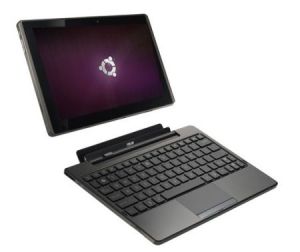
- Its rootfs is too small (2.9G) and resizefs did not work
- Slow response since Ubuntu runs on an external sdcard
- Touch pad of the Transformer keyboard dock did not work
- Wifi problems
- Download the OLiFE Prime Edition and extract it on a Linux machine;
- From the extracted directory run OLiFE.sh;
- Choose the flash device option;
- Choose Dualboot; other Linux boot options does not work for me;
- Choose Android as the default; For the moment Ubuntu as default doesn't seem to work since I run into booting loop problem. To boot the other system, hold the Volume-down button when you turn the device on until asked to press the volume up button;
- Put the device in APX mode. To do that first shut it down then restart it and when the eee pad screen appears hold down both the Volume-up button and the Power button for 5-6 seconds. The screen will go black and stay black, and briefly pressing the Power button has no effect. Then connect it to the computer via the USB cable. If the device refuses to shutdown properly or is already in APX mode but isn't recognised, hold the Power button for 10s until the eee pad screen appears and then try, try, try again;
- Finally you will see some messages saying that the various partitions are being copied across. This takes a good long while.
- Power off and on. Android Prime is up. Push the power button, an option menu (Restart, Shut Down and Recovery) will come up. Pick "Recovery";
- The machine magically boots into Ubuntu! Then I saw a hang in resizefs;
- After few hours I decided to force power off and restart the device;
- Finally I got a good working Ubuntu 11.10 machine with all above problems gone with the Windows installation.
Wireless Platforms Market Will Grow to $155.2 Billion by Year 2016
Research and Markets said the global wireless platform market stood at $61.5 billion in year 2011 and is expected to reach $155.2 billion by year 2016, at 20.3% CAGR during the projected period, according to "Wireless Platforms Market – Global Forecasts & Analysis (2011 – 2016)".
Wednesday, April 11, 2012
Install Native Ubuntu on EeePad Transformer TF101 with Windows
Thanks to eeepadhacks.net for providing a tool to install native Ubuntu 11.04 on EeePad Transformer TF101.
Since I did not install successfully with Linux method (I got keeping boot loop as many people complained), here I only described what I did with a Windows installation. My device model is B60.
Since I did not install successfully with Linux method (I got keeping boot loop as many people complained), here I only described what I did with a Windows installation. My device model is B60.
- Download EeePad Transformer Ubuntu Package and unzip it;
- Download custom ROM 3.1 Build 8.4.4.5 nvflash_windows.zip and unzip it; The Android 3.2 did not work for me;
- Put your Transformer into APX mode by turning your tablet off, then powering it on WHILE HOLDING DOWN the Volume Up button for about 3 seconds;
- Make sure you have APX drivers installed, if not, watch my video to install it, the drivers are located in usbpcdriver directory in tfubuntu folder.
- In the custom ROM directory unzipped by nvflash_windows.zip, run download.bat. After the flashing down, it will boot to Android 3.1;
- Prepare a microSD card for your Transformer bigger than 2GB and copy the whole “Ubuntu” folder of the EeePad Transformer Ubuntu Package the into the root directory of your microSD card on the Transformer.
- Turn off device and put your Transformer into APX mode again, go to the directory of tfubuntu and run "flashbat";
- After flashing, hold down the Power button to reset your Transformer, you should now boot into Ubuntu;
- Follow "HOWTO: Wireless Security - WPA1, WPA2, LEAP, etc." to setup WIFI.
Subscribe to:
Posts (Atom)
